Refresh Rate Checker: Test Monitor Hz, Frame Time, Jitter and Display Smoothness
A monitor's refresh rate is one of the most important specifications affecting how smooth motion appears on a screen. Terms such as 60Hz, 120Hz, 144Hz, 165Hz, 240Hz, and 360Hz are now common among gamers, laptop users, and anyone comparing modern displays. But knowing the advertised refresh rate is only part of the picture. What also matters is how consistently frames are actually delivered.
The Checker.Free Refresh Rate Checker is designed to examine the browser-delivered frame cadence of your display in real time. It can measure refresh cadence, frame interval, timing jitter, delayed frames, pacing stability, and visual smoothness while also providing additional diagnostic and conversion tools.
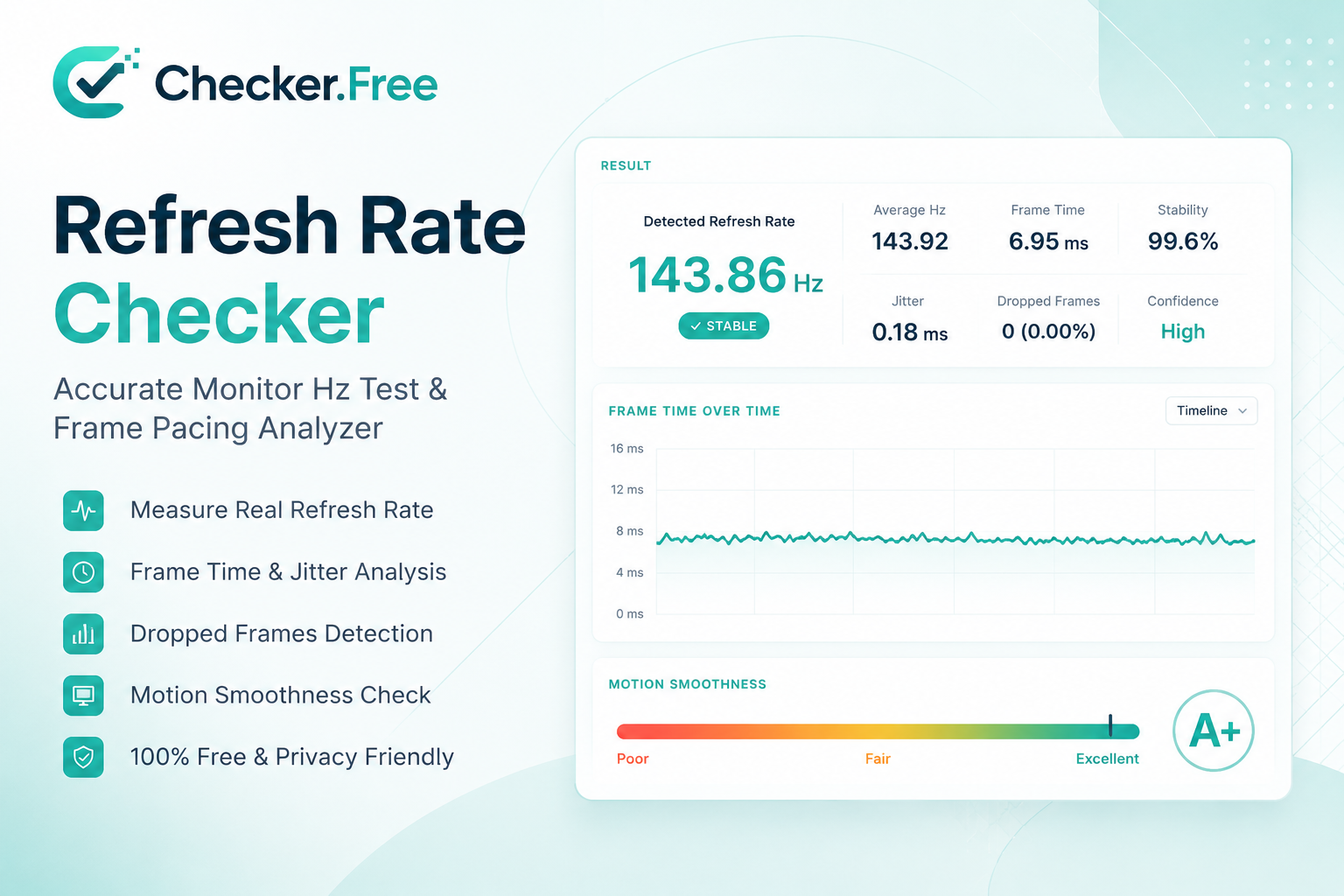
This makes the tool useful not only for answering the basic question "Is my monitor running at 144Hz?" but also for investigating why a high-refresh display may still feel inconsistent or less smooth than expected.
What Does Monitor Refresh Rate Mean?
Refresh rate, measured in Hertz (Hz), describes how many times per second a display can refresh its visual output.
For example:
60Hz means approximately 60 refresh cycles per second.
120Hz means 120 refresh cycles per second.
144Hz means 144 refresh cycles per second.
240Hz means 240 refresh cycles per second.
360Hz means 360 refresh cycles per second.
The time available for each refresh can be calculated using:
Frame Time (ms) = 1000 / Hz
That produces these typical values:
| Refresh Rate | Frame Time |
|---|---|
| 60Hz | 16.67 ms |
| 75Hz | 13.33 ms |
| 90Hz | 11.11 ms |
| 120Hz | 8.33 ms |
| 144Hz | 6.94 ms |
| 165Hz | 6.06 ms |
| 180Hz | 5.56 ms |
| 240Hz | 4.17 ms |
| 360Hz | 2.78 ms |
| 480Hz | 2.08 ms |
The Refresh Rate Checker uses this relationship throughout its calculator and diagnostic interface. The source page specifically explains that 60Hz corresponds to 16.67ms while 144Hz corresponds to 6.94ms per frame interval.
A higher refresh rate therefore gives the display a shorter time interval between updates. However, a 144Hz monitor does not automatically mean that every application is producing 144 unique frames per second.
Refresh Rate vs FPS: Why They Are Not the Same
One of the most common misunderstandings in PC gaming is treating Hz and FPS as identical measurements.
They describe different parts of the visual pipeline.
Refresh rate (Hz) is a display characteristic. It describes how frequently the monitor can perform screen updates.
FPS (Frames Per Second) is a rendering measurement. It describes how many complete frames the graphics system or application is generating.
For example, a system could theoretically produce 240 FPS while using a 144Hz monitor. The GPU is generating frames faster than the display's fixed refresh cadence.
The reverse situation is also possible. A 240Hz monitor may be displaying a game running at only 80 or 100 FPS. In that case, the monitor is capable of updating much more frequently than the application is generating new frames.
This is why refresh rate should be evaluated together with frame rate and frame pacing rather than considered in isolation. The Refresh Rate Checker specifically distinguishes browser-delivered cadence from software FPS, while Checker.Free also provides a dedicated FPS Checker for examining rendering performance.
How the Refresh Rate Checker Measures Your Display
The tool uses the browser's high-resolution requestAnimationFrame timing interface. It records successive browser rendering timestamps and analyzes the intervals between them.
From those measurements, the page can calculate:
Current refresh cadence
Rolling average
Frame interval
Frame jitter
Valid frame count
Delayed frames
Stability
Confidence
Stable P03–P97 range
Overall pacing quality
The interface also displays a real-time graph that can switch between a Hz Curve and Frame Time (ms) view.
This is particularly useful because a single average number does not always describe how smooth a display feels.
A browser-delivered cadence that remains close to the configured refresh rate with small timing variations is generally easier to interpret than one that occasionally experiences large deviations.
How to Test Your Monitor Refresh Rate
Testing is straightforward, but accurate measurements depend on the browser window remaining active.
1. Keep the Test Tab Focused
The page explicitly recommends keeping the browser window active and focused. Background or inactive browser tabs can be throttled, affecting frame timing measurements.
2. Choose a Test Duration
The Refresh Rate Checker provides several modes:
Quick: 3 seconds
Standard: 10 seconds
Stability: 30 seconds
Extended: 60 seconds
Continuous: ongoing measurement
These options make it possible to perform either a fast verification or a longer stability investigation.
3. Start the Test
Press Start Refresh Rate Test. The system first synchronizes the viewport and establishes a timing baseline before collecting measurements.
4. Watch the Live Metrics
During testing, pay attention to the current rate, rolling average, valid frames, delayed frames, frame interval, and the real-time graph.
5. Review the Final Result
After the test, the result dashboard presents the measured cadence, frame interval, stability score, confidence, jitter, stable range, and cadence classification.
Why Frame Pacing Matters More Than Average FPS Alone
Frame pacing refers to how consistently frames arrive over time.
Imagine two applications that both report an average of 60 FPS.
The first delivers frames at almost perfectly regular intervals.
The second delivers frames inconsistently, with some frames arriving much sooner than others.
Although their average FPS might look identical, the second example can produce visible hitching or micro-stutter.
The source page explains that frame pacing is about the consistency and uniformity of frame intervals, while frame jitter represents rapid fluctuations between consecutive frame times.
This is why the Refresh Rate Checker does not stop at a single Hz value. It examines the timing behavior behind that value.
What Is Frame Time?
Frame time is the amount of time, measured in milliseconds, associated with one frame interval.
For a 144Hz display:
1000 / 144 = 6.94 ms
For a 240Hz display:
1000 / 240 = 4.17 ms
As refresh rate increases, the interval becomes shorter.
That difference is particularly interesting when comparing gaming monitors.
60Hz vs 120Hz
Moving from 60Hz to 120Hz changes the frame interval from 16.67ms to 8.33ms.
That means the interval is almost cut in half, which can make scrolling, cursor movement, camera movement, and other animated content appear substantially more fluid.
120Hz vs 144Hz vs 165Hz
The differences become smaller as refresh rate increases.
120Hz:
8.33 ms
144Hz:
6.94 ms
165Hz:
6.06 ms
The technical improvement is real, but the frame-time difference between these levels is much smaller than the transition from 60Hz to 120Hz.
144Hz vs 240Hz
144Hz operates at approximately 6.94ms per refresh, while 240Hz operates at 4.17ms.
The difference is approximately:
2.77 ms
This can be relevant for fast competitive games where high frame rates, rapid camera movement, and target tracking are important.
240Hz vs 360Hz vs 480Hz
At these levels, the reductions become increasingly small in absolute milliseconds:
240Hz → 4.17ms
360Hz → 2.78ms
480Hz → 2.08ms
The source page describes these higher tiers as increasingly specialized for high-speed competitive use and systems capable of sustaining very high frame rates.
What Causes Micro-Stuttering?
High refresh rate alone does not guarantee perfectly smooth motion.
Micro-stuttering can occur when frame timing fluctuates because of factors such as:
Background CPU activity
GPU workload changes
Browser scheduling
Compositor delays
Memory-related pauses
Synchronization configuration
Mismatched frame rate and refresh rate
The page's FAQ notes that irregular frame intervals can produce visible hitching even when an application reports a high average FPS.
The tool's Motion Smoothness & Stutter Inspector provides a separate visual test where moving elements can be inspected for intermittent hitching, tearing, and visible motion irregularities.
What Is VRR, FreeSync and G-SYNC?
Modern displays can use Variable Refresh Rate (VRR) technologies to synchronize display timing more dynamically with GPU rendering.
Common technologies include:
AMD FreeSync
AMD's implementation of adaptive synchronization for compatible displays and GPUs.
NVIDIA G-SYNC
NVIDIA's display synchronization technology, with different forms of hardware and compatibility implementations.
VRR
The broader concept of allowing the display to adjust its refresh timing according to the rendering cadence.
These technologies are designed to reduce problems such as tearing and stutter when the GPU's frame output varies.
However, it is important to understand the limitation of a browser-based refresh test: the Checker.Free tool measures browser-delivered frame cadence and does not directly access GPU driver registers or internal hardware VRR logic.
Does Higher Refresh Rate Reduce Input Lag?
A higher refresh rate can reduce the display-presentation component of latency because each refresh interval is shorter.
For example, the time between refresh opportunities is:
60Hz  → 16.67ms
144Hz → 6.94ms
240Hz → 4.17ms
However, total end-to-end latency includes much more than the monitor.
It can involve:
Mouse or controller input polling
Game-engine processing
CPU processing
GPU rendering
Render queues
Display scanout
The source page specifically notes that higher refresh rate reduces part of presentation latency, while total end-to-end input latency depends on the complete input and rendering pipeline.
For input-device testing, Checker.Free also provides a dedicated Mouse Checker.
Refresh Rate Does Not Automatically Eliminate Ghosting
Higher refresh rates can improve perceived motion clarity, but refresh rate and pixel response time are different specifications.
Refresh rate describes how frequently the display updates.
Pixel response time describes how quickly individual pixels transition between states.
A display can therefore have a very high refresh rate while still showing visible ghosting if its pixel response characteristics are slow.
The page explicitly distinguishes refresh rate from pixel response time and explains that a fast refresh rate alone does not guarantee the absence of ghosting trails.
For panel-related inspection, you can also use the Dead Pixel Checker.
Why Is My 144Hz or 240Hz Monitor Stuck at 60Hz?
Buying a high-refresh monitor does not necessarily mean your computer is already configured to use its maximum mode.
Several things can limit the delivered refresh rate:
Check Windows or macOS Settings
Operating systems can default a display to 60Hz even when the panel supports 144Hz, 165Hz, 240Hz, or more.
Check the Cable
The cable and video interface need enough bandwidth for the selected resolution, color depth, and refresh rate.
Check the GPU Port
On desktop PCs, make sure the display is connected to the appropriate dedicated GPU output rather than an unintended motherboard video output.
Check Monitor OSD Settings
Some displays include options such as DisplayPort modes, HDMI modes, overclocking modes, or high-refresh settings inside the monitor's own menu.
Check Laptop Power Saving
Some laptops dynamically reduce refresh rate or system performance while running on battery or under power-saving profiles. The source page specifically highlights battery-saving modes and Dynamic Refresh Rate behavior as possible causes.
Keep the Browser Window Active
Even when the hardware is configured correctly, background browser throttling can affect the timing measurements.
HDMI and DisplayPort Can Affect Available Refresh Rates
High refresh rates require sufficient transmission bandwidth.
The source page provides a dedicated HDMI and DisplayPort bandwidth comparison and notes that the achievable combination of resolution, color depth, and refresh rate depends on the interface, cable, adapter, GPU capabilities, and display configuration.
For example, a setup targeting 4K at a very high refresh rate has substantially higher bandwidth requirements than 1080p at 60Hz.
When investigating a refresh-rate limitation, do not look only at the monitor specification. Examine the entire signal path:
GPU → Port → Cable / Adapter → Monitor Input → Monitor Mode
A limitation anywhere in that chain can result in a lower available refresh mode.
You can also verify your current screen resolution with the Resolution Checker.
What the Refresh Rate Checker Can Measure
The browser-based analyzer is particularly useful for examining:
Delivered browser frame cadence
Frame interval in milliseconds
Frame timing jitter
Delayed frames
Stability and pacing behavior
Visual motion smoothness
Browser and environment diagnostics
Refresh-rate/frame-time conversions
The diagnostic section also provides browser timing, display resolution, and hardware-related environment information.
What a Browser Test Cannot Directly Prove
A browser timing test should not be confused with laboratory display measurement equipment.
The source page clearly distinguishes browser measurements from direct hardware measurements. In particular, the tool cannot directly read:
The physical internal panel clock
Pixel response time measured optically
Complete end-to-end input latency
Internal G-SYNC or FreeSync hardware registers
These limitations are important when interpreting results. A browser test is highly useful for checking delivered timing behavior, but it is not equivalent to an oscilloscope or dedicated high-speed photodiode measurement system.
Refresh Rate Standards at a Glance
The Refresh Rate Checker includes a standards database covering common display frequencies and their corresponding frame times.
| Refresh Rate | Frame Time | Typical Use |
|---|---|---|
| 60Hz | 16.67ms | Office work, browsing, general use |
| 75Hz | 13.33ms | Entry productivity |
| 90Hz | 11.11ms | Mobile and smoother everyday displays |
| 120Hz | 8.33ms | Modern displays and gaming |
| 144Hz | 6.94ms | PC gaming |
| 165Hz | 6.06ms | High-refresh gaming |
| 180Hz | 5.56ms | High-speed gaming |
| 240Hz | 4.17ms | Competitive gaming |
| 360Hz | 2.78ms | High-frame-rate esports |
| 480Hz | 2.08ms | Extreme high-refresh applications |
The important point is that a larger Hz number is only one part of display performance. The quality of frame delivery, consistency, response time, synchronization, and the frame rate produced by the computer all contribute to the final experience.
Use the Checker.Free Refresh Rate Checker
The Refresh Rate Checker combines a live Hz measurement with frame-time analysis, pacing diagnostics, motion inspection, display telemetry, a Hz-to-frame-time calculator, and a refresh-rate standards database.
For a quick verification, a 3-second test can be enough to see the general delivered cadence. For investigating inconsistent motion or suspected frame-timing problems, longer tests such as 30 or 60 seconds provide more measurement data.
The tool also supports copying a diagnostic result and exporting raw history as JSON, which can be useful when comparing different configurations or troubleshooting a display over time.
Because the calculations are performed locally in the browser and the page states that historical measurements remain on the local device, the tool can also be used for repeated personal diagnostics without treating the measurements as an upload-based hardware benchmark.
Related Checker.Free Tools
Once you have checked your monitor's refresh behavior, several other Checker.Free tools can help complete the diagnosis:
FPS Checker — examine rendering frame rate and graphics performance.
Dead Pixel Checker — inspect your screen for visible pixel defects.
Resolution Checker — verify the active display resolution.
Mouse Checker — investigate mouse input behavior and hardware responsiveness.
DPI Checker — examine mouse sensitivity and DPI-related configuration.
Together, these tests can help separate display refresh issues from FPS limitations, input-device problems, resolution settings, and physical panel defects.
Final Thoughts
Refresh rate is more than a number written on a monitor's specification sheet. Hz determines the potential refresh cadence, frame time shows the interval between updates, FPS describes rendered frames, and frame pacing determines how consistently those frames arrive.
A 144Hz display running with unstable frame delivery may not feel as smooth as expected, while a properly configured 144Hz system with consistent frame pacing can provide a much more fluid experience.
The Checker.Free Refresh Rate Checker is therefore useful not only for checking whether a display is approximately delivering 60Hz, 120Hz, 144Hz, 240Hz, or another refresh mode, but also for investigating the timing behavior behind that measurement.
Comments
Post a Comment