Ping Checker: Test Ping, Jitter, Packet Loss, Bufferbloat, DNS and Network Stability
A fast internet connection does not necessarily mean a responsive internet connection.
You can have high download speeds and still experience noticeable lag in online games, delayed voice communication, unstable video calls, slow interactive websites, or sudden connection freezes. In many cases, the problem is not bandwidth but latency, jitter, packet loss, routing, or bufferbloat.
The Checker.Free Ping Checker is designed as a broader network diagnostics tool rather than a simple single-number ping test. It measures real-time RTT latency, jitter, packet loss, latency spikes, stability, loaded latency, and DNS response behavior, while also allowing tests against multiple network endpoints.
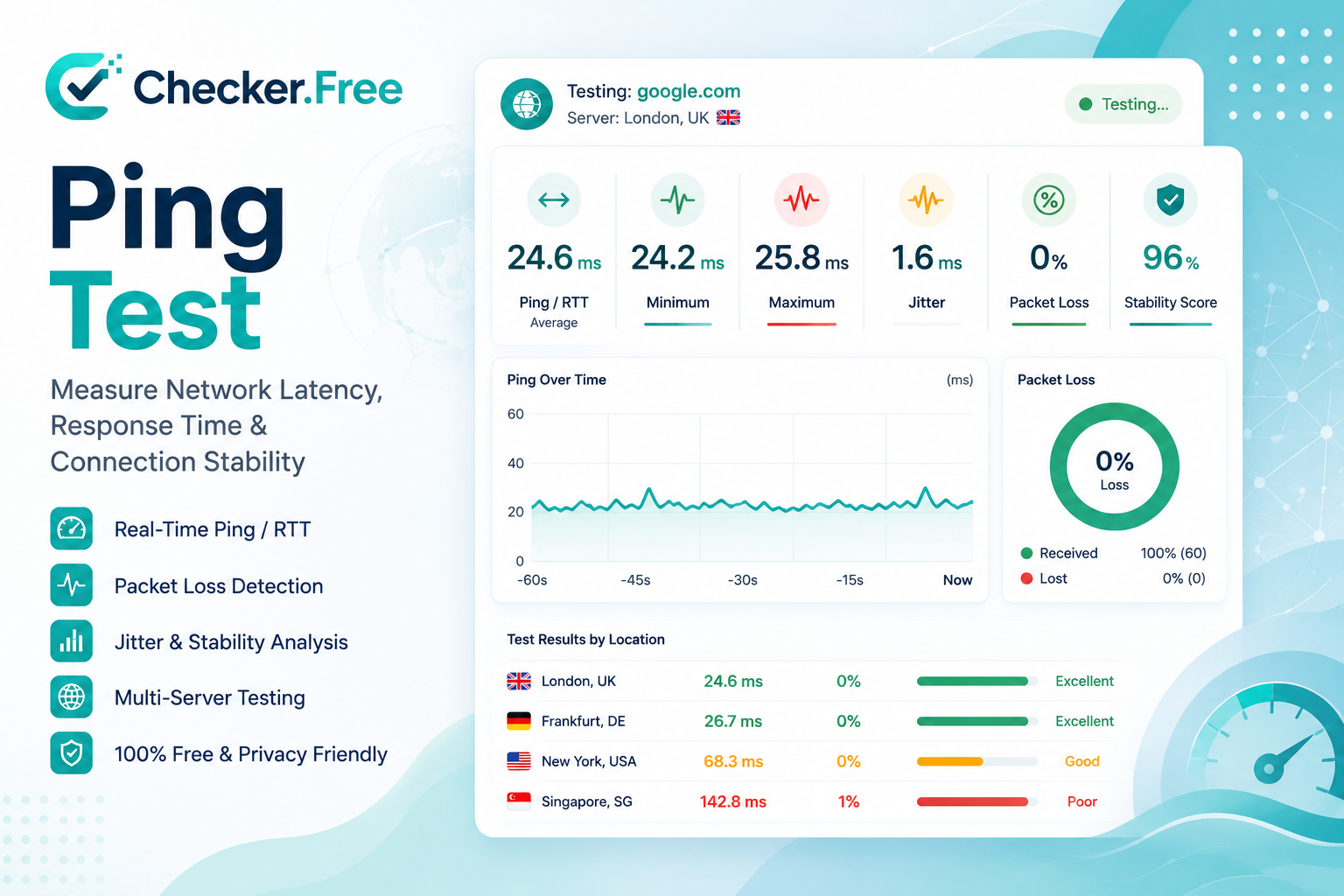
The official page is presented as a Ping Checker & Network Diagnostics Lab, with dedicated modes for Quick Ping Test, Multi-Server Mesh, Loaded Latency, and DNS-over-HTTPS testing.
What Is a Ping Test?
A ping test measures the round-trip time, commonly abbreviated as RTT, between your device and a remote network endpoint.
In simple terms, the measurement represents how long it takes for a request to travel outward and for the corresponding response to return.
Ping is normally expressed in milliseconds (ms).
For interactive applications, smaller and more consistent latency generally means a faster-feeling connection. However, average latency alone does not tell the entire story.
A comprehensive network test should also examine:
Jitter
Packet loss
Latency spikes
Minimum latency
Maximum latency
Median latency
Connection stability
Behavior under network load
The Checker.Free page specifically describes ping as an RTT measurement and distinguishes latency from bandwidth: a high-speed connection does not automatically guarantee low latency.
Ping vs. Latency: What Is the Difference?
The terms ping and latency are often used interchangeably, but they are not exactly the same.
Latency is the general concept of delay in a network.
Ping is both the diagnostic operation and the resulting RTT measurement generated by that test.
For example, when a ping test displays:
25 ms
the number represents the measured round-trip delay for that particular test method and endpoint.
A network can therefore have:
Low average latency + high jitter
or:
Moderate latency + very stable delivery
These two connections may feel very different in a real-time application.
How to Test Ping Online
The Checker.Free Ping Checker provides a structured testing workflow.
1. Select a server
The default setting is Auto Select, described as selecting the fastest measured route.
You can also manually choose among available test nodes, including global anycast and public gateway endpoints.
2. Start the test
Click Start Ping Test.
The interface performs a 100-packet probe and displays the latency information graphically.
3. Examine the live metrics
The test displays:
Current Ping
Median Ping
Jitter
Packet Loss
Minimum Ping
Maximum Ping
Packets Delivered
Spikes Detected
Stability Index
This gives you much more context than a single ping value.
What Is a Good Ping?
There is no universal ping value that is perfect for every application.
A connection that feels extremely responsive in a web browser may not provide the same experience in a competitive multiplayer game.
The page uses these approximate practical ranges:
| Ping | General interpretation |
|---|---|
| Under 30 ms | Very responsive |
| 30–60 ms | Generally smooth |
| 60–100 ms | Usually acceptable for everyday use |
| Over 150 ms | Noticeable delay is more likely |
These are practical reference ranges rather than strict technical standards. The actual experience depends on the application, server location, routing path, and consistency of the connection.
For gaming, the page notes that a stable connection under about 40 ms with low jitter is often desirable for fast-paced multiplayer games, while emphasizing that the game, server region, and network implementation all influence the result.
Why Your Ping Changes Between Servers
It is completely normal for different servers to produce different ping results.
Several factors influence the measurement.
Geographic Distance
The further away the test server is, the longer the physical network path may be.
A nearby regional edge server can therefore produce dramatically different latency compared with an intercontinental endpoint.
Routing Paths
Internet traffic does not necessarily follow the geographically shortest route.
Your ISP may send traffic through different transit providers, exchange points, and peering arrangements.
Server Processing
The destination endpoint itself can introduce processing delay depending on its current workload and infrastructure.
For this reason, comparing ping values is most meaningful when you also consider which server was tested.
Ping Is Not the Same as Download Speed
One of the most common misconceptions about internet performance is assuming that a faster connection always means lower ping.
These are different measurements.
Download speed
Measures how much data can be transferred toward your device over a period of time.
Upload speed
Measures how much data can be transmitted from your device.
Ping
Measures round-trip delay.
Jitter
Measures variation in latency.
Packet loss
Measures data that fails to arrive.
A connection can therefore have:
1000 Mbps download
and still experience:
High jitter
Packet loss
Bufferbloat
Ping spikes
during heavy network usage.
The Ping Checker is specifically designed to investigate these additional factors.
What Is Network Jitter?
Jitter describes variation in latency between successive network transmissions.
Imagine three measurements:
25 ms
65 ms
30 ms
The average may not look catastrophic, but the large variation indicates that packets are not arriving with consistent timing.
This matters greatly for real-time applications.
High jitter can contribute to:
Voice distortion
Delayed conversation
Video-call instability
Movement stuttering in games
Inconsistent real-time interaction
The page specifically identifies Discord, Zoom, Teams, and multiplayer gaming as examples of applications where predictable packet delivery is important.
What Is Packet Loss?
Packet loss occurs when transmitted packets fail to reach their intended destination.
Possible causes mentioned by the page include:
Network congestion
Router queue drops
Wireless interference
Intermediate routing problems
Packet loss can be particularly noticeable in real-time UDP applications because retransmitting missing information may arrive too late to preserve the original interaction.
This can result in:
Voice dropouts
Temporary video pauses
Character or player movement "rubber-banding"
Input desynchronization
Sudden connection instability
The Ping Checker reports packet loss as a percentage and also tracks how many packets were successfully delivered.
Ping Spikes: Why Does Latency Suddenly Jump?
A ping spike is a temporary increase in latency.
For example:
22 ms
24 ms
23 ms
25 ms
178 ms
27 ms
24 ms
The average may still look relatively good, but that one large spike can be extremely noticeable during a competitive game or voice call.
Common causes described by the page include:
Wi-Fi radio interference
Background cloud synchronization
Game downloads and updates
Router bufferbloat
Dynamic routing changes
Server-side traffic surges
This is why looking at the latency graph can sometimes reveal a problem that an average ping value hides.
What Is Bufferbloat?
One of the most important advanced network concepts tested by the page is bufferbloat.
Bufferbloat occurs when network equipment holds excessive amounts of data inside large buffers during heavy traffic.
For example, imagine someone in your home starts a large upload while you are playing an online game.
Without effective queue management, packets associated with your game can become stuck behind large amounts of upload traffic.
The result can be:
Idle Ping → 20 ms
Heavy Upload → 150+ ms
Even though your internet connection is technically fast.
The problem is not necessarily insufficient bandwidth. It is excessive queueing delay.
The page identifies SQM, including algorithms such as CAKE and FQ_CoDel, as approaches that can help mitigate bufferbloat on compatible routers.
Loaded Latency vs. Idle Latency
Traditional ping measurements often test a connection when it is relatively quiet.
That is called idle or unloaded latency.
But real household networks are rarely completely idle.
Someone may be:
Streaming video
Uploading photos
Downloading a game
Synchronizing cloud files
Updating software
The Loaded Latency Test intentionally examines latency while network traffic is under simulated strain.
The Checker.Free interface reports:
Unloaded Ping
Loaded Ping
Latency Delta
Load Resilience Grade
The difference between the idle and loaded measurements can reveal whether the connection remains responsive when bandwidth is being used.
Gaming Ping and Online Lag
Gaming performance depends on more than FPS.
A game can render at a high frame rate while the network connection is experiencing:
High ping
Jitter
Packet loss
Spikes
Bufferbloat
For competitive gaming, stability can be particularly important.
A stable connection at a moderate latency can feel more predictable than a connection with a lower average ping but frequent spikes.
The page recommends combining network testing with display and performance diagnostics. You can use the FPS Checker and Refresh Rate Checker alongside the Ping Checker to examine other parts of the gaming setup.
This creates a more complete diagnostic chain:
Mouse → Keyboard → FPS → Refresh Rate → Network
For mouse and input testing, the Mouse Checker and Keyboard Checker can also be useful.
Why Low Ping Does Not Always Mean Smooth Gaming
Consider two connections:
Connection A
Average Ping: 20 ms
Jitter: High
Packet Loss: Occasional
Connection B
Average Ping: 45 ms
Jitter: Very Low
Packet Loss: 0%
The second connection may feel more predictable even though its average latency is higher.
This is because real-time applications are affected by consistency, not just the average RTT.
The page specifically highlights this principle for competitive gaming and recommends paying attention to jitter and packet loss alongside the average ping.
Ethernet vs. Wi-Fi Ping
Ethernet usually provides a more predictable local connection because it avoids many of the variables associated with wireless transmission.
Wi-Fi latency can be affected by:
Signal strength
Distance from the access point
Walls and physical obstacles
RF interference
Channel congestion
Neighboring wireless networks
The page recommends using Ethernet when troubleshooting persistent packet loss or unstable latency because it helps isolate wireless-related causes.
A useful troubleshooting experiment is to run the same ping test over Wi-Fi and then over Ethernet.
If the problem disappears on Ethernet, the next investigation should focus on the wireless environment rather than immediately blaming the ISP.
Does a VPN Increase Ping?
A VPN can increase latency because it may introduce:
Additional routing hops
Encryption processing
An intermediary VPN server
A different network path
However, the effect is not always identical.
The distance to the VPN server and the quality of its network routing matter.
In unusual cases, a VPN can potentially produce a better route to a specific destination if your ISP's direct route is inefficient.
Therefore, the correct way to evaluate VPN impact is to test:
Direct connection
vs.
VPN connection
against the same destination or equivalent test endpoints.
The page discusses this distinction directly in its VPN guidance.
What Is DNS Latency?
DNS stands for Domain Name System.
DNS translates human-readable domain names into IP addresses that network systems can use.
For example:
example.com
must ultimately resolve to an address before a browser can establish the appropriate connection.
DNS latency is therefore the time required for a resolver to respond to a lookup.
DNS performance is especially relevant when opening new domains, although DNS resolution is not performed for every packet after an established connection is already using a resolved destination.
What Is DNS-over-HTTPS?
DNS-over-HTTPS, or DoH, sends DNS queries inside HTTPS traffic.
The Ping Checker includes a dedicated DoH test that measures resolver response performance across independent endpoints.
Its DNS diagnostic table displays:
Server
Protocol
Average Response
Minimum
Maximum
Jitter
Failures
Status
This allows users to compare DNS responsiveness rather than simply assuming that one resolver will always be fastest.
The page also explains that DoH encrypts DNS queries inside HTTPS traffic rather than transmitting traditional DNS requests as ordinary plaintext queries.
Browser Ping vs. Command-Line Ping
A browser-based ping test is not identical to the traditional operating-system ping command.
Traditional command-line ping commonly uses ICMP Echo Request packets.
A web browser operates inside a sandbox and cannot simply send arbitrary raw ICMP packets.
Instead, a browser-based diagnostic can measure HTTP/HTTPS request-response timing against accessible endpoints.
This introduces factors such as:
TLS negotiation
HTTP processing
Browser scheduling
Application-layer overhead
Consequently, a browser test may display a somewhat different number from:
ping example.com
That does not automatically mean one test is wrong.
They can be measuring different parts of the network stack.
The Checker.Free FAQ explicitly calls out this distinction and explains that its browser test measures HTTP/HTTPS fetch round-trip timing to accessible endpoints.
Multi-Server Ping Test
A single server can sometimes give an incomplete picture.
The Multi-Server Ping Matrix allows latency to be benchmarked across multiple geographic and edge nodes.
The interface compares:
Minimum latency
Average latency
Maximum latency
Jitter
Packet loss
Score
Status
This is particularly useful for determining whether an issue appears to be:
Destination-specific
or:
Connection-wide
For example, if one server shows severe latency while the others remain stable, the problem may involve the route or destination rather than your entire local connection.
How to Tell Whether the Problem Is Your Router or ISP
A useful diagnostic process is to test multiple devices.
For example:
Computer A — Wi-Fi
Computer B — Wi-Fi
Laptop C — Ethernet
Phone — Wi-Fi
Then compare the results.
If only one computer has the problem, the cause may be local to that device.
If every Wi-Fi device is affected but Ethernet is stable, wireless conditions become more suspicious.
If multiple devices show packet loss and high jitter over Ethernet while the local network is otherwise idle, investigating the router, modem, ISP route, or regional network becomes more appropriate.
The page specifically recommends comparing multiple devices and wired versus wireless results when trying to isolate the source of persistent network instability.
A Practical 10-Step Network Troubleshooting Workflow
When dealing with persistent lag or unstable ping, a structured process can save time.
1. Run the 100-packet test
Start with the nearest automatically selected endpoint.
2. Examine jitter and packet loss
Do not look only at average ping.
3. Run the Multi-Server Mesh
Determine whether the issue affects one route or several destinations.
4. Test loaded latency
Check whether latency increases dramatically when bandwidth is under load.
5. Switch to Ethernet
This helps isolate Wi-Fi interference.
6. Disable VPNs and proxies temporarily
Compare direct ISP routing with the altered route.
7. Test another device
Rule out background processes on your main computer.
8. Restart the modem and router
This can clear temporary network-state problems.
9. Compare different times
Test during quiet periods and during peak evening usage.
10. Contact the ISP when the pattern persists
If wired devices consistently experience packet loss and unstable latency with no significant local traffic, the problem may require investigation beyond the local device.
Why You Should Test Ping at Different Times
A connection can behave differently throughout the day.
Residential infrastructure is shared, so utilization can change between quieter morning hours and busier evening periods.
The page specifically recommends comparing results during different times and notes that 7:00 PM to 11:00 PM can be a useful period for observing peak-load behavior.
For more consistent monitoring, you could record:
Morning
Afternoon
Evening
Late Night
Then compare:
Median Ping
Maximum Ping
Jitter
Packet Loss
Stability
This can make recurring congestion patterns easier to identify.
Understanding the Network Stability Score
The Ping Checker provides a Network Quality & Stability Score.
It also provides contextual scores for:
Gaming
Video Calls
Streaming
Browsing
The overall stability system is described as a heuristic rather than an official industry-standard measurement. It combines observations such as median latency, jitter behavior, packet delivery, and spike frequency into an easier-to-understand index.
This means the score is best used as a summary of the tool's measurements, not as a universal certification of internet quality.
The individual metrics remain important because they explain why a score may change.
Save, Export, and Compare Results
The interface also provides several ways to retain test results.
The Quick Ping Test includes:
Snapshot
CSV export
JSON export
Test History
The history system can be useful when comparing network performance over time.
For example, you can run a test before changing your router settings and repeat it afterward.
This can make troubleshooting more objective than relying on subjective impressions such as:
“The internet feels faster now.”
What Makes a Good Network Connection?
There is no single number that defines a perfect connection.
For interactive applications, a healthy profile generally means looking at several properties together:
| Metric | What it tells you |
|---|---|
| Ping / RTT | Overall round-trip delay |
| Median Ping | Typical latency during the test |
| Jitter | Stability of latency |
| Packet Loss | Reliability of packet delivery |
| Minimum Ping | Best observed response |
| Maximum Ping | Largest observed delay |
| Spikes | Short periods of abnormal latency |
| Loaded Latency | Behavior while the connection is busy |
| DNS Response | Resolver responsiveness |
| Stability Score | Combined heuristic summary |
The advantage of this approach is that it separates different causes that can otherwise all feel like generic “internet lag.”
Final Thoughts
The Checker.Free Ping Checker is designed as a complete network diagnostics environment rather than a simple tool that displays one ping number.
It combines a 100-packet real-time probe, live RTT charts, jitter monitoring, packet-loss detection, stability analysis, multi-server testing, loaded-latency measurements, bufferbloat investigation, and DNS-over-HTTPS response testing.
For gaming, the most useful approach is to look beyond average ping and examine jitter, packet loss, spikes, and loaded latency.
For video calls, consistent latency and low packet loss can be more informative than raw bandwidth.
For general troubleshooting, comparing multiple servers, different devices, Ethernet versus Wi-Fi, and different times of day can help isolate whether the issue originates from the local device, wireless network, router, route, or ISP.
The most important concept is simple:
A fast connection is not necessarily a stable connection.
Download speed tells you how much data your connection can move. Ping tells you how quickly a remote endpoint responds. Jitter tells you how consistently that response arrives. Packet loss tells you whether some data disappears along the way. Loaded latency shows what happens when the connection is busy.
Using all of these measurements together gives you a much clearer picture of actual network quality.
For gaming and system performance, combine the test with the FPS Checker and Refresh Rate Checker. For input troubleshooting, use the Mouse Checker and Keyboard Checker.
Start your diagnostic at the official Checker.Free Ping Checker and evaluate the complete latency profile rather than relying on a single ping number.
Comments
Post a Comment