Mouse Checker: Test Mouse Buttons, Double Clicks, Scroll Wheel, Tracking, CPS and Hardware Problems
A mouse can appear perfectly normal while still developing problems that are difficult to notice during everyday use. A single click may occasionally become a double click, the scroll wheel may jump in the opposite direction, a side button may stop registering, or a drag operation may unexpectedly release. These problems can become especially frustrating during gaming, productivity work, browsing, or precise design tasks.
The Mouse Checker from Checker.Free is designed as a comprehensive mouse testing and diagnostic tool. Instead of checking only whether a cursor moves, it examines individual mouse buttons, scroll-wheel behavior, click timing, switch chatter, drag continuity, pointer movement, event delivery, reaction speed, and precision.
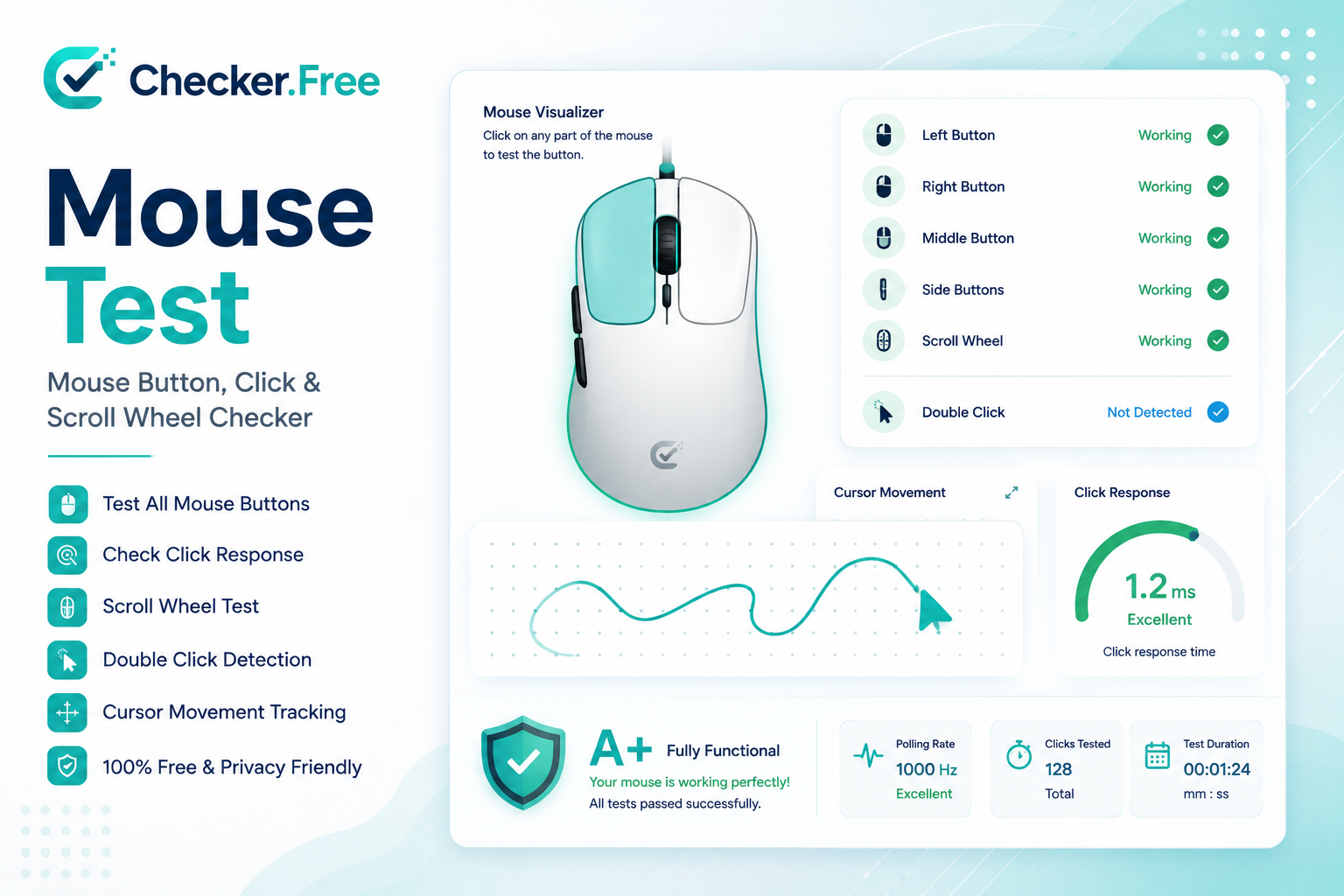
The page describes itself as a comprehensive online mouse and hardware diagnostic environment, supporting left, right, middle, and side buttons, scroll-wheel testing, double-click detection, switch chatter analysis, CPS measurements, cursor tracking, and additional precision-oriented tests.
What Is a Mouse Checker?
A mouse checker is an online diagnostic utility that listens for mouse-related pointer events and visualizes what the browser receives from the connected pointing device.
A basic mouse test normally answers one question:
Does the mouse move and click?
A comprehensive diagnostic tool goes further and asks:
Does every button register?
Is a single click sometimes registered twice?
Is the scroll wheel producing consistent direction values?
Does the button remain held during dragging?
Is the cursor movement being delivered continuously?
How quickly are click events arriving?
How fast can you click?
How quickly can you react to a visual target?
Are there unusual event patterns that may indicate a hardware problem?
The Checker.Free page describes its test as a browser-based diagnostic system that verifies left, right, middle, and side buttons while also monitoring wheel input, drag operations, and cursor movement.
This makes a mouse checker useful not only when a device is clearly broken, but also when you suspect an intermittent problem.
How to Test a Mouse Online
Testing a mouse does not need to be complicated. A structured test is more useful than simply clicking a few times.
1. Connect the Mouse
Connect the mouse through USB, a wireless receiver, or Bluetooth. The page also supports other pointing devices such as wireless mice, Bluetooth mice, trackballs, and laptop touchpads.
For hardware diagnosis, using the device in its normal configuration is important. If the mouse uses manufacturer software for button remapping, DPI profiles, macros, or debounce settings, those settings can influence the behavior you observe.
2. Open the Testing Pad
The main testing area contains an interactive pad where you can move the pointer and perform different mouse actions.
The interface displays a virtual mouse model that visually responds to button input. There are separate indicators for the left click, right click, middle click, back button, forward button, and scroll wheel.
This provides an immediate visual confirmation that the browser received the corresponding input.
3. Test Every Button
Do not test only the left and right buttons.
A complete mouse button test should include:
Left click
Right click
Middle click
Back side button
Forward side button
The button matrix records individual actuations and separates the five major mouse controls.
This is particularly useful for gaming mice with multiple programmable buttons.
Mouse Double Click Test
One of the most common mouse problems is an accidental double click.
A user may press the button once, but the computer receives two click signals. This can produce unexpected behavior when selecting files, opening folders, clicking interfaces, or playing games.
The Mouse Checker includes a dedicated Double Click diagnostic mode. It also provides a separate Chatter panel for analyzing rapid click intervals.
A useful diagnostic process is to perform repeated individual clicks rather than intentionally double-clicking. The objective is to see whether one deliberate physical press consistently produces one click event.
The page also notes that switch wear or contact behavior can result in rapid duplicate signals being interpreted as separate clicks.
What Is Mouse Switch Chatter?
Switch chatter describes rapid repeated actuation signals associated with the switch contact behavior.
This is different from intentionally clicking quickly.
For example, a normal user action might look like:
Click → release
A problematic switch can produce a pattern closer to:
Click → micro interval → Click
The Mouse Checker's Chatter panel tracks the fastest interval between consecutive click events and allows the detection threshold to be configured. The settings interface provides a threshold range from 15 ms to 90 ms, with the default displayed as 40 ms.
This is useful when investigating intermittent double-click behavior or unusually fast restrikes.
Importantly, a browser test measures what the system receives rather than physically opening the switch or measuring its electrical contacts. That distinction matters when interpreting results.
Test the Scroll Wheel for Skipping
Scroll-wheel problems can be particularly annoying because they may appear only occasionally.
A wheel that is wearing out or producing inconsistent encoder signals may scroll in one direction and then unexpectedly generate an opposite-direction event.
The Mouse Checker provides a dedicated Scroll Wheel diagnostic. It displays values such as:
Scroll Up count
Scroll Down count
Last Delta Y
Step Stream consistency
Current direction
The page specifically recommends watching the direction and delta stream for unexpected reverse values.
How to Test for Scroll Skipping
Roll the wheel slowly in one direction.
For example:
Scroll upward repeatedly.
Watch the direction indicators.
Check the delta values.
Repeat downward.
Look for unexpected reverse-direction events.
Performing the test slowly is useful because irregular wheel behavior can become easier to see when the input is not mixed with rapid scrolling.
Mouse Drag and Hold Stability Test
A working click switch should remain active while the button is held down.
This sounds obvious, but a worn switch can sometimes lose contact during movement. That can cause:
Dragged files to stop unexpectedly.
Selected text to become unselected.
Objects to drop while being moved.
Long button holds to terminate prematurely.
The Hold & Drag diagnostic measures the current hold duration, longest solid hold, completed drags, and interrupted events.
To test it, press and hold the selected mouse button and drag the virtual object across the testing pad.
A useful result is not simply a long hold time. What matters is whether the hold remains continuous throughout the movement.
Mouse Tracking and Movement Test
Mouse diagnostics are not limited to clicks.
The testing pad also measures pointer movement, including:
X/Y coordinates
Total movement distance
Current speed
Peak speed
Pointer coverage
The page also includes a Heatmap option for visualizing pointer movement across the testing area.
This can help when investigating cursor stuttering, inconsistent movement, or unusual tracking behavior.
Tracking Versus Sensor DPI
It is important not to confuse browser-observed movement with physical sensor DPI.
The page explicitly states that the test observes on-screen pixel displacement and does not directly measure true physical sensor DPI. Actual physical DPI requires calibration against a measured physical distance.
That makes the tool useful for behavioral testing, but it should not be interpreted as a laboratory-grade sensor calibration system.
CPS Test for Mouse Clicking Speed
CPS means Clicks Per Second.
The Mouse Checker includes a CPS challenge with selectable durations of:
1 second
3 seconds
5 seconds
10 seconds
The interface reports CPS score, time remaining, total clicks, and peak burst performance.
CPS is especially relevant to gaming because rapid-clicking techniques can place significant emphasis on button responsiveness and consistency.
For example, users may use CPS testing to compare their clicking performance across different mice or after changing a mouse configuration.
For a more dedicated clicking benchmark, you can also use the CPS Checker.
Precision and Reaction Testing
A mouse is not only a button device. Pointer accuracy and reaction timing can also matter.
The Mouse Checker includes a Precision & Reaction panel with two challenges:
Reaction
10 Targets
The diagnostics section displays reaction time, best reaction time, accuracy, and targets hit.
These tests can be useful for gaming-oriented users who want to examine both physical mouse input and their own interaction speed.
However, reaction time is influenced by more than the mouse itself. Human response time, display latency, browser scheduling, and system conditions can all contribute to the final measurement.
Browser Event Rate vs Mouse Polling Rate
One of the most important technical limitations to understand is event rate.
The Mouse Checker includes an Event Rate panel that reports:
Current rate
Peak rate
Average rate
Stream quality
Number of samples
But the page explicitly identifies this value as browser event delivery, not raw USB polling.
This distinction is critical.
A gaming mouse may advertise a hardware polling rate such as 500 Hz, 1000 Hz, or higher, but a browser application does not directly expose the raw kernel-level USB polling stream.
Instead, the browser receives DOM pointer events that may be influenced by browser scheduling, operating-system behavior, and event processing.
Therefore, the Event Rate should be interpreted as a measurement of what reaches the JavaScript environment.
Reading Mouse Diagnostic Results
A good diagnostic session should look for patterns rather than a single number.
Button registration
Every tested button should produce an event when pressed.
The page tracks individual button counts and a combined test progress indicator.
Accidental double clicks
A single deliberate press should not repeatedly generate duplicate clicks.
Unexpected rapid repeat events are worth investigating through the Double Click and Chatter diagnostics.
Scroll consistency
Scrolling repeatedly in one direction should not randomly generate opposite-direction events.
Drag continuity
A click-and-hold action should remain active throughout the drag.
Cursor movement
Pointer movement should be delivered consistently without unexplained pauses, jumps, or erratic behavior.
These observations are often more meaningful when repeated several times.
What an Online Mouse Test Can and Cannot Detect
A browser-based test can observe a significant amount of mouse behavior, but it does not have direct access to every hardware layer.
What it can observe
The Mouse Checker can observe:
Button click arrivals
Rapid click timing
Scroll-wheel delta direction
Click-and-hold continuity
Pointer coordinates
Movement velocity
Browser event delivery rates
CPS performance
Reaction and precision interactions
What it cannot directly confirm
The page also identifies several things outside the direct scope of browser diagnostics, including:
Internal circuit-board damage
Exact physical sensor DPI
Raw microcontroller polling rate
Hardware-level electrical resistance
Certain radio-frequency interference conditions
These distinctions are important because a browser diagnostic result is behavioral evidence rather than a complete hardware laboratory analysis.
Troubleshooting Mouse Problems
When a test reveals unexpected behavior, avoid immediately assuming that the mouse itself is physically damaged.
The page recommends testing across different ports or systems when appropriate, because drivers, background applications, and configuration software can sometimes produce similar symptoms.
Try another USB port
For wired mice, moving from a front-panel hub to a direct motherboard port can help isolate connection-related variables.
Check vendor software
Mouse software may remap side buttons, modify debounce behavior, change profiles, or assign macros.
Examples mentioned by the page include applications such as Razer Synapse and Logitech G HUB.
Test another computer
A second system can help determine whether the behavior follows the mouse or appears only within a particular operating-system environment.
Test after configuration changes
If you change DPI profiles, button assignments, or other companion-software settings, run the relevant Mouse Checker tests again.
Testing a New or Used Mouse Before Buying
A mouse tester can also be useful before purchasing a used device or before a return period expires.
A practical inspection should cover:
Left click
Right click
Middle click
Side buttons
Scroll wheel
Double-click behavior
Switch chatter
Hold state
Drag continuity
Cursor tracking
Precision
Reaction
CPS performance
Wireless connection
This is particularly useful for second-hand gaming mice where cosmetic condition may not reveal switch or encoder wear.
Privacy and Local Diagnostic Processing
The page states that mouse events, coordinates, click data, and timing calculations are processed locally in the browser. It also states that the diagnostic engine does not transmit mouse-event telemetry or cursor-position data to external servers.
This is relevant because cursor movement and interaction data can be sensitive from a privacy perspective.
The technical description also identifies performance.now() as the timing mechanism used for analyzing event intervals and describes the application as operating within the browser sandbox.
Mouse Testing for Gamers
Gaming mice can benefit from a more detailed diagnostic process because players often depend on rapid clicks, side buttons, precise tracking, and consistent movement.
A useful gaming-oriented workflow is:
Mouse buttons → Chatter → Scroll Wheel → Hold & Drag → CPS → Precision → Reaction → Tracking
You can then combine the results with other Checker.Free diagnostics.
For example:
FPS Checker can be used to inspect frame-rate performance.
Refresh Rate Checker can help examine display refresh behavior.
CPS Checker provides a dedicated clicking benchmark.
Keyboard Checker can be used to test keyboard inputs alongside the mouse.
Together, these tools provide a broader view of the input and display environment.
Common Mouse Problems and Their Diagnostic Modes
The Mouse Checker organizes several common symptoms around dedicated diagnostic modes.
Accidental double clicking
Use the Double Click and Chatter panels.
Scroll wheel skipping
Use the Scroll Wheel diagnostic.
Button not registering
Use the visual mouse model and button matrix.
Switch chatter
Examine the fastest restrike interval and compare it with the configured threshold.
Tracking skips and jitter
Use the main tracking pad and Heatmap.
Drag interruptions
Use the Hold & Drag diagnostic.
The page presents these as six primary mouse problems that can be investigated through the corresponding diagnostic panels.
Event Stream, Reports, and Saved Sessions
Mouse diagnostics can become more useful when the observations are saved rather than checked only once.
The interface includes an Event Stream for reviewing hardware input sequences, with filters for:
All events
Clicks
Wheel
Movement
It also provides controls to pause or clear the event stream.
The page provides Export JSON, Export CSV, Copy Report, and Save Session options, while the Saved Sessions area can be used to review previous mouse test records.
This can be useful when comparing a mouse before and after changing software settings, cleaning the device, changing USB ports, or testing it on another machine.
Final Thoughts
A mouse test is most useful when it is treated as a diagnostic workflow rather than a simple “click checker.”
The Mouse Checker combines individual button verification with double-click detection, switch chatter analysis, scroll-wheel consistency testing, hold-and-drag diagnostics, pointer tracking, CPS challenges, precision testing, reaction tests, and browser event monitoring.
Its greatest value is the ability to turn vague symptoms into observable input behavior.
Instead of simply saying “my mouse feels broken,” you can investigate whether the problem appears as missed button events, unexpected duplicate clicks, inconsistent wheel direction, interrupted holds, unusual tracking behavior, or browser-delivered event patterns.
At the same time, the limits of browser-based diagnostics should be kept in mind. The tool does not directly inspect internal electronics, measure raw USB polling at the microcontroller level, or determine exact physical sensor DPI.
For everyday troubleshooting, gaming preparation, used-device inspection, and general mouse health checks, however, a structured diagnostic process can provide much more information than ordinary clicking and scrolling.
Use the official Checker.Free Mouse Checker to examine your mouse button-by-button and test its behavior across the different diagnostic modes.
Comments
Post a Comment